How to schedule Downtime on iPhone
2 min read · 5 steps · Updated 2 October 2026
Open Settings, tap Screen Time, tap Downtime and switch on Scheduled. Choose the days and the From and To times. During those hours only phone calls and the apps you allow will open.
Downtime blocks most apps for a set part of the day, usually the evening and night. Calls still come through, and you choose which apps stay open. It is the simplest way to stop scrolling in bed.
Step by step
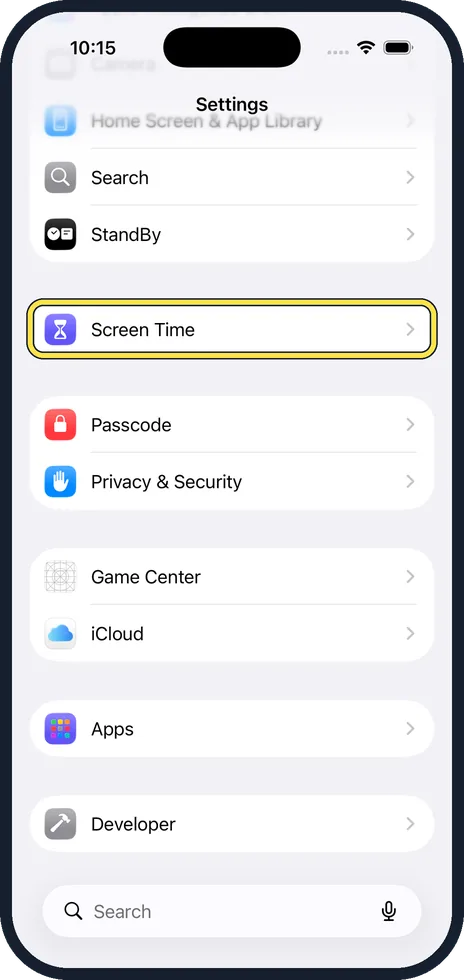
Open Settings and tap Screen Time
Scroll down the Settings list to the purple hourglass.
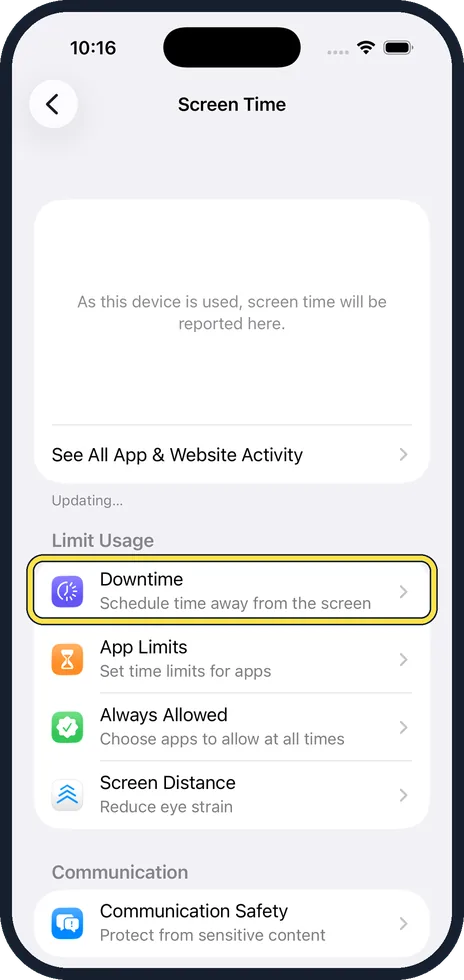
Tap Downtime
It is the first row under Limit Usage. If you do not see it, turn on App & Website Activity first.
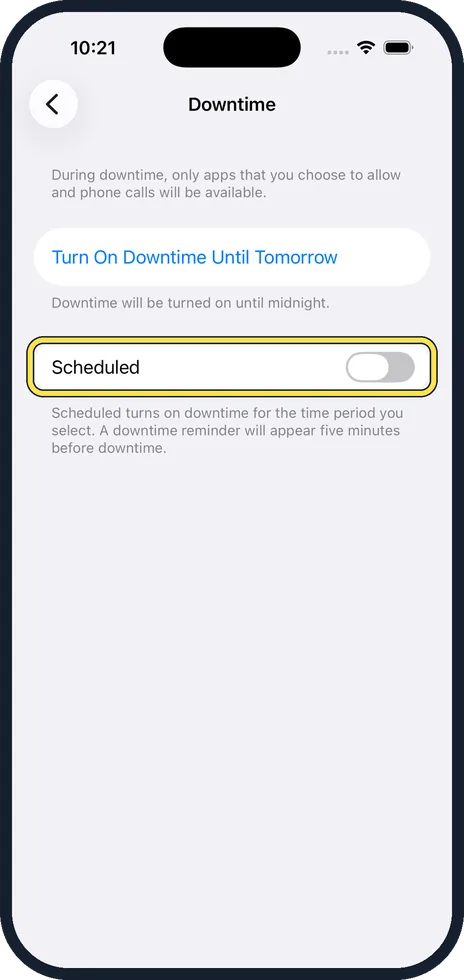
Switch on Scheduled
Tap the switch next to Scheduled. New rows appear for the days and times.
Set the days and times
Choose Every Day or Customise Days, then set From and To. A common choice is 22:00 to 07:00. The phone shows a reminder five minutes before Downtime starts.
Choose the apps that stay open
Go back one page and tap Always Allowed. Tap the green plus next to any app you still need at night, such as your alarm, music or a reading app.
Good to know
To start Downtime right now without a schedule, tap Turn On Downtime Until Tomorrow on the same page. It ends at midnight.
During Downtime, blocked apps show an hourglass. You can still open one by tapping Ignore Limit unless a Screen Time passcode is set.
In short: Settings, Screen Time, Downtime, Scheduled, set the hours. Add the apps you need to Always Allowed.
- Apple Support: Use Screen Time on your iPhone
Rules and prices change. Check the official source before you act.