How to stop apps from tracking you on iPhone
2 min read · 4 steps · Updated 2 October 2026
Open Settings, tap Privacy & Security, then Tracking, and switch off Allow Apps to Request to Track. Every app is then refused automatically and you stop seeing the tracking pop-ups.
Many apps want to follow what you do in other companies' apps and websites so they can build an advertising profile. On iPhone they have to ask first. One switch refuses all of them at once, including apps you install later.
These screens are from iOS 26 on an iPhone 17. On older versions the rows are in the same place, with a slightly different look.
Step by step
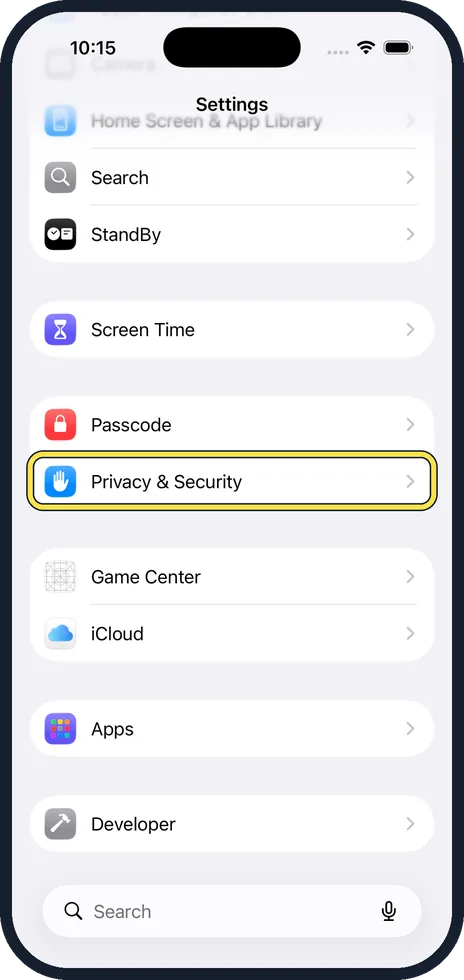
Open Settings and tap Privacy & Security
Scroll down the Settings list to the blue hand icon.
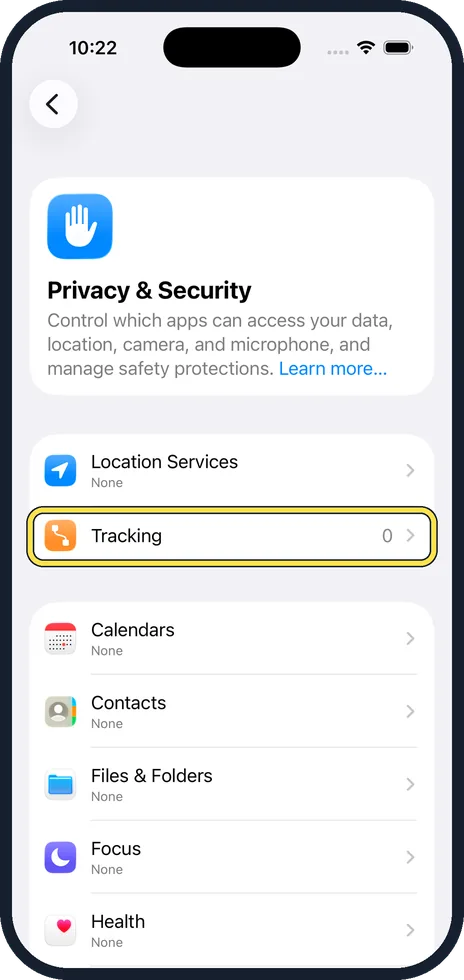
Tap Tracking
It is the second row, under Location Services. The number on the right shows how many apps have asked so far.
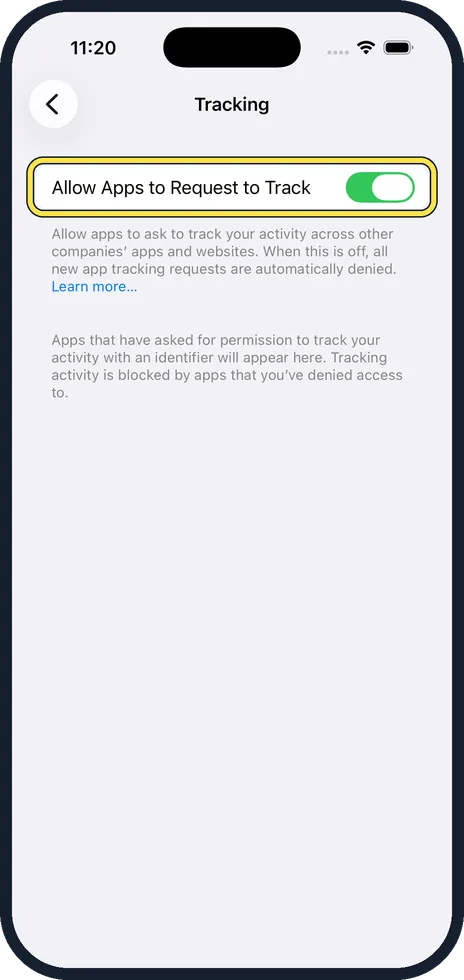
Switch off Allow Apps to Request to Track
When the switch is grey, every new request is denied without asking you. If some apps already had permission, the iPhone asks whether to keep it or tell them to stop. Choose Ask Apps to Stop Tracking.
Check the list underneath
Apps that asked before appear below the switch, each with its own toggle. Make sure they are all off.
Good to know
This setting stops apps from using your device's advertising identifier and from sharing your activity with other companies for ads. Apps can still show adverts, and they can still use what you do inside the app itself.
You may see a message that the setting cannot be changed. That happens on child accounts, on phones managed by a school or employer, and on Apple Accounts created in the last few days.
For web browsing, Safari has its own protection, Prevent Cross-Site Tracking, in its settings under Settings, Apps, Safari. It is on by default.
In short: Settings, Privacy & Security, Tracking, switch off Allow Apps to Request to Track.
- Apple Support: If an app asks to track your activity
Rules and prices change. Check the official source before you act.