How to turn off auto-brightness on an iPhone
2 min read · 4 steps · Updated 2 October 2026
Open Settings, tap Accessibility, then Display & Text Size, scroll to the bottom and switch off Auto-Brightness. The screen then stays at the level you set in Control Centre.
Auto-Brightness changes the screen with the light around you. Some people find it dims too much indoors or keeps shifting. The switch is not on the Display page where most people look for it.
Step by step
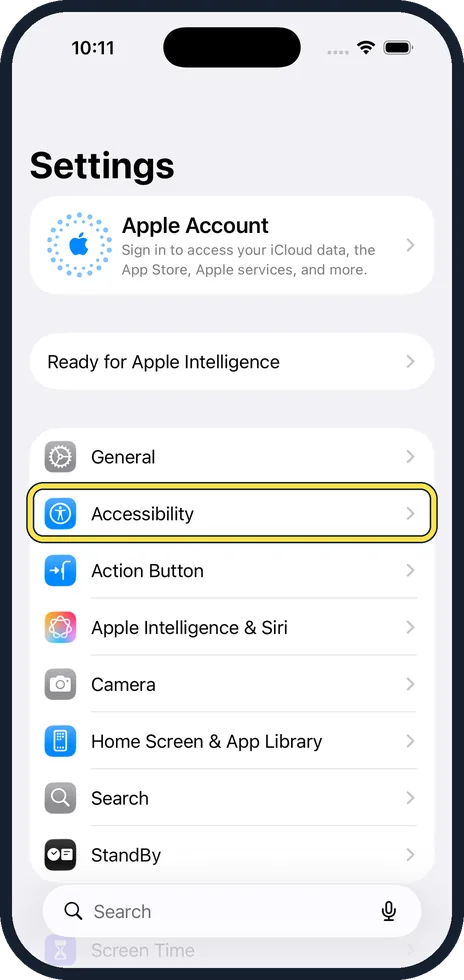
Open Settings and tap Accessibility
Accessibility is near the top of the Settings list.
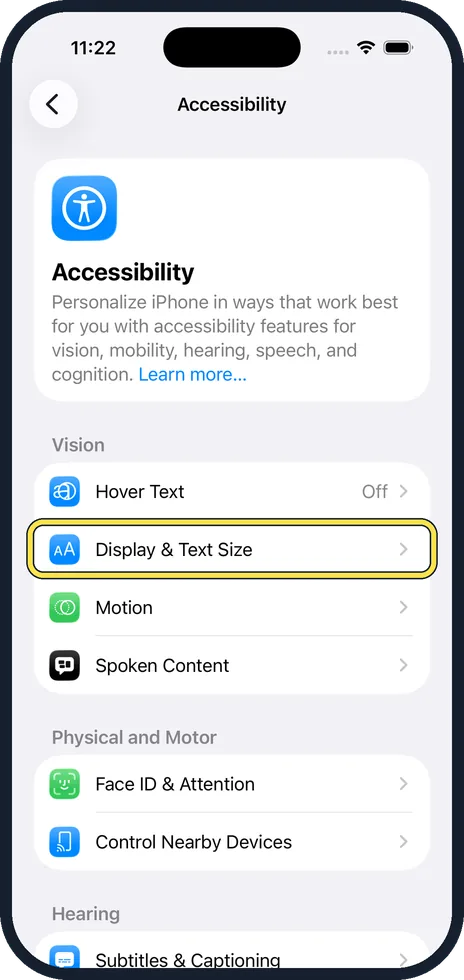
Tap Display & Text Size
It is in the Vision group.
Scroll to the bottom and switch off Auto-Brightness
A note warns that this may affect battery life.
Set the brightness yourself
Open Control Centre and drag the brightness slider.
Good to know
If the screen still dims by itself, the phone is probably hot. iPhones lower brightness to cool down, whatever the settings.
True Tone, under Settings, Display & Brightness, changes the colour warmth with the room light, and Night Shift makes the screen warmer in the evening. Both are separate from Auto-Brightness.
A bright screen is one of the largest battery drains. With Auto-Brightness off, turn it down by hand in dark rooms.
In short: Settings, Accessibility, Display & Text Size, Auto-Brightness off.
- Apple Support: Adjust the screen brightness and colour on iPhone
Rules and prices change. Check the official source before you act.