How to use StandBy on an iPhone
2 min read · 6 steps · Updated 3 October 2026
Lock the iPhone, connect it to a charger and stand it on its side so it is upright in landscape. StandBy starts by itself and shows a clock, widgets or photos. Swipe left or right to change the view. It needs iOS 17 or later.
StandBy turns a charging iPhone into a small bedside or desk display with a large clock, a calendar, photos or music controls that you can read from across the room.
The pictures are real screens from iOS 26 on an iPhone 17.
Step by step
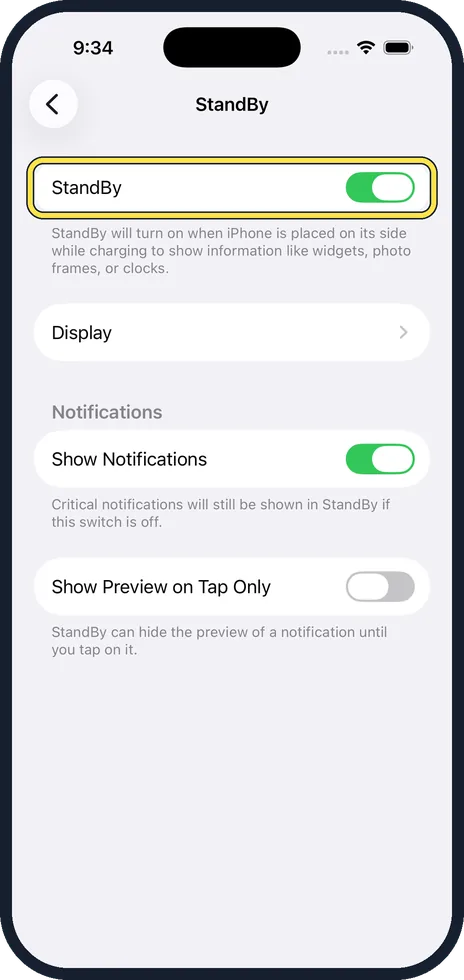
Check that StandBy is on
Open Settings, StandBy. The switch is on by default.
Put the iPhone on a charger, on its side
It has to be charging, locked, in landscape and standing upright. A stand with MagSafe or a wireless charging stand is ideal. Lying flat does not work.
Wait a moment
The StandBy screen appears by itself.
Swipe left or right to change the view
There are three views: widgets, photos and a full-screen clock.
Customise a view
Swipe up or down to change a widget or clock style. Touch and hold to add or remove widgets or choose photo albums.
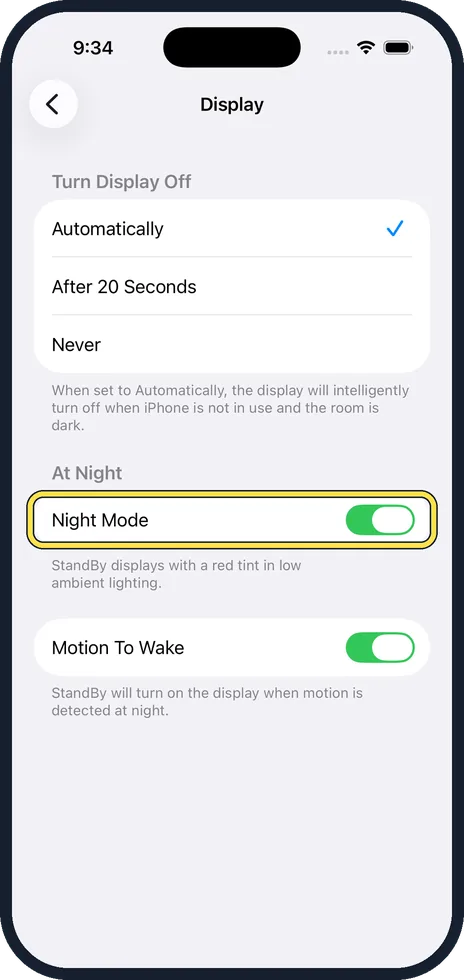
Set when the screen turns off and Night Mode
Open Settings, StandBy, Display. Choose Automatically, After 20 Seconds or Never, and switch Night Mode on or off.
Good to know
How long the StandBy screen stays lit is set under Settings, StandBy, Display: Automatically, After 20 Seconds or Never. Automatically turns it off when the iPhone is not in use and the room is dark. On older models without an always-on display the screen turns off after a while. Tap it to see it again.
Night Mode, under Settings, StandBy, Display, gives the screen a red tint in a dark room so that it does not disturb sleep. Motion To Wake lights it up when it notices movement at night.
Show Notifications, on the StandBy page, decides whether alerts appear large on the StandBy screen.
With MagSafe, the iPhone remembers the view you prefer at each charger.
In short: Lock it, charge it, stand it on its side. Swipe to change views. Settings, StandBy for options.
- Apple Support: Use StandBy to view information at a distance while iPhone is charging
- 9to5Mac: iPhone StandBy, how to use and customise
Rules and prices change. Check the official source before you act.